PDF table extraction guide
How to extract tables from PDFs and scans: preserve field relationships, then compare values
Tables are easy to underestimate in a PDF. Page breaks, merged cells, repeated headers, scanned images and footnotes can all break the row and column relationship when you copy the text. This guide uses a safer workflow: confirm the table structure, extract named fields within a scope, then check values, units and differences in a second pass.
Why copying a PDF table often fails
A visual table in a PDF is not always stored as real rows and columns. Lines may be drawings, cells may span pages, headers may repeat and notes or units may sit outside the grid. A scanned table must first be read as an image, so low resolution or skew can add more misalignment.
That is why the first question should not be “export this table.” Ask how many columns it has, what each column means, whether headers repeat and where the data begins. Once the structure is explicit, the values are easier to inspect.
- Confirm table title, pages, units and repeated headers.
- Separate merged cells, footnotes and notes from data rows.
- Flag low-resolution scans and handwritten edits for review.
Ask for structure, then extract named fields
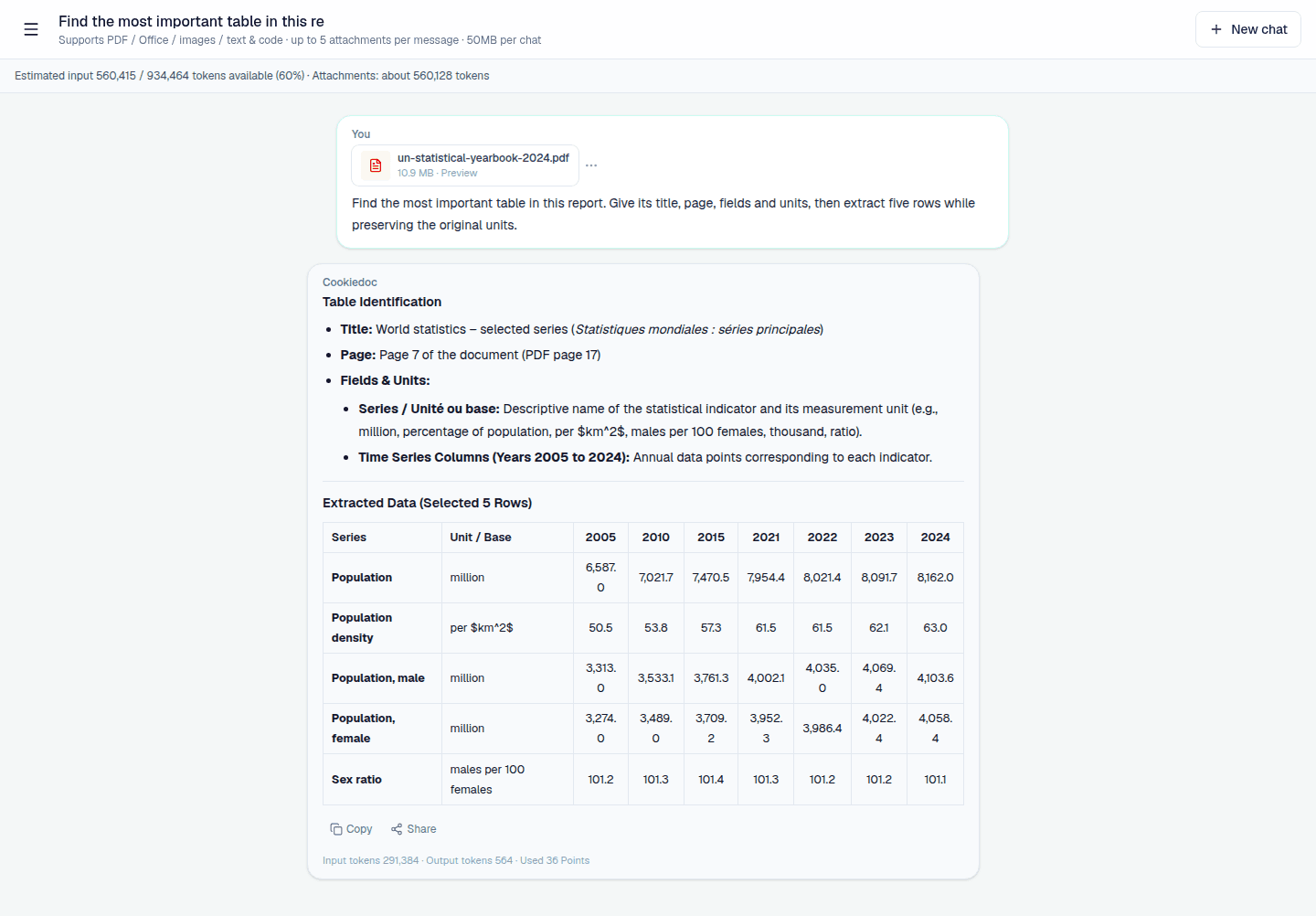
Start with “what tables appear on these pages, how many columns does each have and what are the headers and units?” Then specify the scope and fields, for example: “extract item, quantity, specification and amount from the table on page 4, preserving the original units.”
For a table spanning pages, ask each row to keep its source page and confirm that repeated headers were not treated as data. Preserve the original format for amounts, quantities and percentages; ask for totals or comparisons separately so conversion does not hide the source value.
- Use field names rather than “the second column from the left.”
- Keep original units, decimal places and page numbers.
- Confirm header and row continuity before combining pages.
Align fields and units before comparing tables
Two tables can use the same column label while representing different units, dates or filters. Before comparing, ask for fields, units, period, filters and missing values. This avoids comparing a tax-inclusive amount with a tax-exclusive amount or mixing different measurement units.
A useful difference list includes old value, new value, source page, change type and the reason to confirm. Preserve the original representation for percentages, rounding and blanks, and label any calculation as a calculated value.
- Confirm version, date, units and population before comparison.
- Separate added, removed, changed and unaligned rows.
- Keep source values, converted values and inferences distinct.
Use sampling to make extracted tables more trustworthy
After extraction, do not check only the final total. Sample the header, first page, middle page, last page and a row with a footnote, then ask the system to read one key field again. Sampling is especially important for amounts, engineering specs, bid quantities and financial data.
When the table is complex, blurry or heavily marked by hand, treat the result as a draft for organization. Before a report, quote, settlement or engineering use, return to the original PDF or scan and verify the important rows and columns.
- Sample the beginning, middle, end and footnote pages.
- Repeat one important field question to test consistency.
- Keep manual corrections separate from source values.
PDF table extraction checklist
- Table title, pages, columns, units and repeated headers are confirmed.
- Target fields, row scope and output order are explicit in the question.
- Page breaks, merged cells, footnotes and blanks are handled separately.
- Versions, dates, units and filters are aligned before comparison.
- Amounts, quantities, specs and report-ready values are sampled against the source.
PDF and scanned table extraction FAQ
Can scanned tables be extracted?
You can ask the system to read text and tables in scanned images, but clarity, skew, handwriting and merged cells affect accuracy. Sample important values against the original image.
How can I avoid row and column shifts across pages?
Ask for headers, column count, units and page relationships first. Then extract named fields by page and keep a source page with every row instead of asking for a generic table export.
Can I trust a total calculated by AI?
Do not rely on it without checking. Keep source values and units, label calculations separately and sample the key rows and total against the PDF or scan.
Turn PDF tables into fields and differences you can verify
Confirm the table structure first, extract named fields next, and align versions, units and filters before comparing.